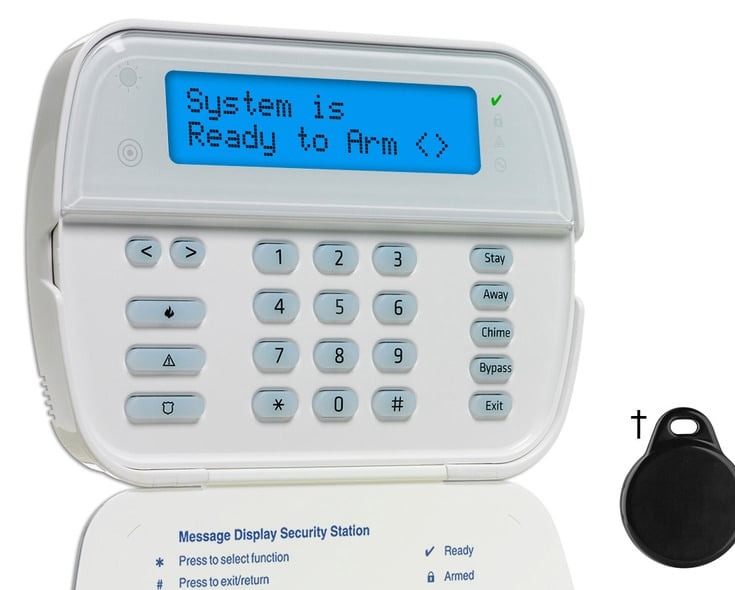
The DSC Classic PC1550, PC2550, and PC3000 alarm systems are foundational models in the DSC lineup, each offering scalable protection for residential and small commercial environments. The PC1550 is a 6-zone control panel known for its simplicity and reliability, supporting up to 8 zones with basic sensors and a single keypad interface. The PC2550 expands on this with 8 zones and enhanced programmability, including auto-bypass features and support for up to 15 user codes. The PC3000 is the most advanced of the trio, offering 16 zones and compatibility with multiple PC3000RK keypads, making it ideal for larger installations. All three systems include standard features like zone bypassing, alarm memory display, and fire alarm reset, with intuitive keypad interfaces and audible indicators for system status
To view trouble conditions on any of these systems, watch for the “Trouble” light on the keypad and listen for beeps—twice every 10 seconds on the PC2550 and PC3000, and every 40 seconds on the PC1550. Pressing any key will silence the beeping, but the Trouble light remains lit until the issue is resolved. Trouble conditions may include low battery, power failure, or communication faults. To add user codes, press ][5] followed by the Master Code. Then enter the user slot number (01–08 for PC1550, 01–15 for PC2550, and 01–16 for PC3000), followed by the new 4-digit code. The “Program” light will flash during entry, and zone lights indicate which codes are active. To change the Master Code, enter [][5][current Master Code][40]new Master Code][#]. All entries must be made one key at a time, and the system confirms successful programming with a beep or light indicator.
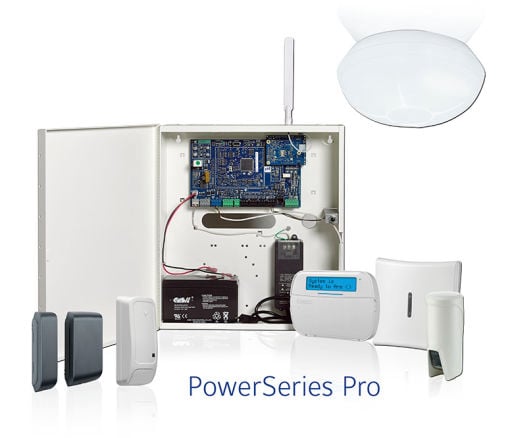
The DSC Classic PowerSeries PC1555, PC5010, and PC5020 alarm systems are robust and scalable security solutions designed for residential and commercial environments. The PC1555 supports up to 32 zones and 38 user codes, offering reliable protection with features like programmable outputs, EEPROM memory, and compatibility with both LED and alphanumeric keypads. The PC5010, part of the Power832 series, expands functionality with support for 8 to 32 zones, 2 partitions, and a 128-event buffer, making it ideal for medium-sized installations. The PC5020, the most advanced of the trio, accommodates up to 64 zones and 8 partitions, with a 256-event buffer and enhanced features like burglary verification and cross zoning for high-security applications. All three systems support hardwired, wireless, and addressable modules, and are known for their reliability, modular expandability, and user-friendly programming.
To view trouble conditions on any of these systems, press [] followed by [2] on the keypad. The Trouble or System indicator will illuminate, and the keypad will beep every 10 seconds until acknowledged. The display will show numbers 1–8, each corresponding to a specific trouble type such as AC power failure, low battery, telephone line fault, or system tamper. Press [#] to silence the beeping. To add user codes, press ][5] followed by the master code. Then enter a two-digit user slot (e.g., 01 for user 1) and the new 4-digit code. For the PC1555, up to 38 codes can be programmed; for the PC5010 and PC5020, follow the same sequence and use the appropriate user slot range (up to 32 for PC5010 and 64 for PC5020). To delete a code, re-enter the user slot and press [*], then [#] to exit. Always record new codes for future reference and ensure the master code is kept secure.
The DSC Classic PowerSeries PC1616 and PC1832 alarm systems are versatile and expandable security platforms designed for residential and commercial use. The PC1616 offers 6 on-board zones, expandable to 16 hardwired and 32 wireless zones, with support for 2 partitions, 8 keypads, and up to 48 user codes. The PC1832 builds on this with 8 on-board zones, expandable to 32 hardwired and 32 wireless zones, 4 partitions, and up to 72 user codes. Both systems feature 2 programmable outputs (expandable to 14), a 500-event buffer, and compatibility with smart home integrations via Alarm.com communicators. Their modular architecture and CP-01 compliance make them ideal for installations requiring flexibility, reliability, and future-proofing.
To view trouble conditions on either system, press [*] then [2] on the keypad. The Trouble or System indicator will light up, and the keypad will beep every 10 seconds until acknowledged. On LCD keypads, use the arrow keys to scroll through trouble messages such as AC power failure, low battery, or communication faults. Press [#] to exit the trouble display. To add user codes, press [*][5] followed by the master code. Then enter a two-digit user slot (e.g., 01 for user 1) and the new 4- or 6-digit code, depending on system configuration. For the PC1616, you can program up to 48 user codes; for the PC1832, up to 72. Supervisor codes are always valid for programming, and partitioning allows user codes to be assigned to specific areas. To change the master code (access code 40), installer access may be required. Always disarm the system before programming and confirm successful entry with keypad beeps or visual indicators.
The DSC Maxsys 4010 and 4020 are robust, modular alarm systems engineered for high-security residential, commercial, and industrial applications. The Maxsys 4010 supports 8 to 64 zones and offers flexible partitioning, global keypad access, and an intuitive LCD interface with English prompts and audible feedback. The Maxsys 4020 expands these capabilities significantly, starting with 16 zones and scaling up to 128 zones via expansion modules. It supports up to 8 partitions, 16 hardwired keypads, 1,500 user codes, and a 3,000-event buffer, making it ideal for large-scale installations. With built-in telephone line and siren supervision, access control for up to 32 doors, and compatibility with GSM and T-Link communicators, the 4020 delivers enterprise-grade security and remote management options
To view trouble conditions on either system, watch for the keypad’s Trouble light and audible beeps every 10 seconds. Press [#] to silence the beeping, then press * followed by [2] to enter the trouble display. The keypad will show active trouble conditions such as low battery, zone faults, or communication errors. Press [#] again to exit. To add or modify user codes, press *[5] followed by the Master Code. Use the arrow keys to scroll to “Program Code” and press [*] or [0]. Enter the desired user slot number, then input the new 4- or 6-digit code. You can assign partition access and labels during this process. The Grand Master Code (user 01) has full programming privileges, and the system supports menu-driven navigation for easy configuration.
The DSC PowerSeries Neo alarm systems—comprising models HS2016, HS2032, HS2064, and HS2128—are hybrid security platforms that blend the reliability of hardwired systems with the flexibility of PowerG wireless technology. Designed for both residential and commercial environments, these systems support up to 128 zones and 8 partitions (depending on the model), and offer advanced features like alarm verification, remote service capabilities, and seamless integration with Alarm.com for smart home control. With scalable architecture, encrypted wireless communication, and a wide range of keypad options including LCD, LED, and proximity sensor models, PowerSeries Neo delivers robust protection and intuitive user interaction.
To view trouble conditions on a DSC Neo keypad, press [] to silence any beeping, then press ][2]. The Trouble indicator will flash to show the current trouble level—one flash for level 1, two for level 2, and so on. Use the arrow keys to scroll through specific trouble messages such as AC power loss, low battery, or communication faults. To add or change user codes, press [] then [5], followed by the Master Code. Enter the two-digit user slot number (e.g., 02 for user 2), then input the new 4-, 6-, or 8-digit access code. The system supports up to 32 user codes, and for single-digit slots, a leading zero is required. To delete a user code, follow the same steps and press [] to erase the code, then [#] to exit programming mode.
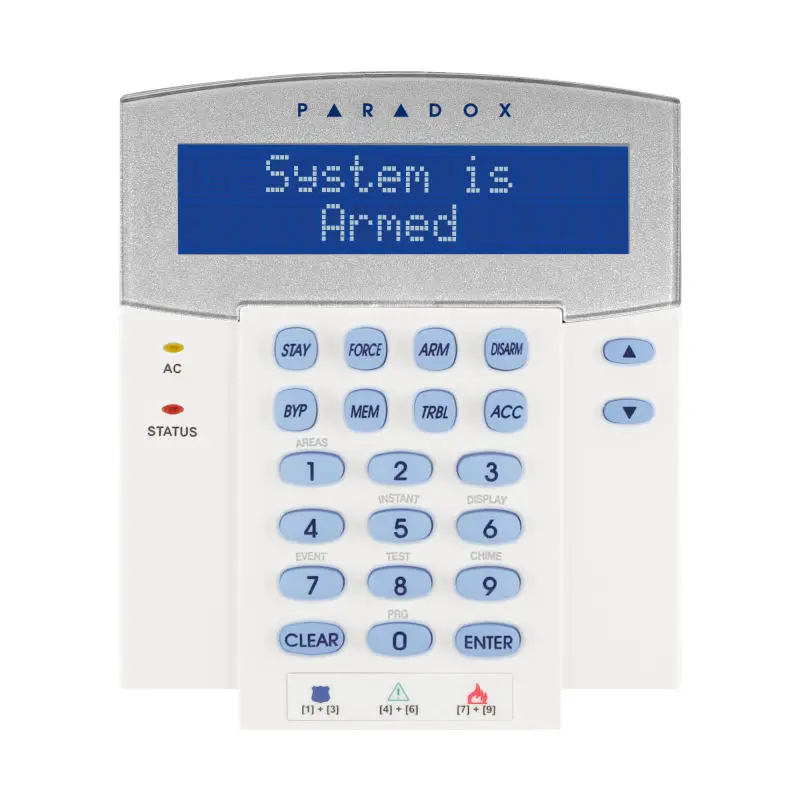
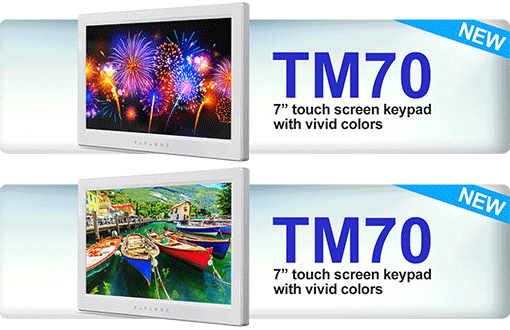
The Paradox EVO series, particularly the EVO192, is a high-performance alarm system designed for demanding environments such as government facilities, luxury residences, and commercial sites. It supports up to 192 zones and 999 users across 8 partitions, with modular expansion and integrated access control for up to 32 doors. The system is compatible with a wide range of communication modules (IP, GSM, GPRS) and offers remote management via software or web browser. The TM70 keypad enhances user interaction with a vivid 7-inch touchscreen display, customizable interface, built-in zone input, and indoor temperature readout. Meanwhile, the K641 is a traditional LCD keypad offering reliable system control and programming access with clear text prompts and intuitive navigation.
To view trouble conditions on either keypad, press and hold the [CLEAR] or [TRBL] button (depending on model) until the trouble menu appears. The TM70 will display detailed messages on-screen, while the K741 will show numbered trouble codes that correspond to system faults like AC failure, low battery, or communication errors. Use the arrow keys to scroll through messages and press [CLEAR] to exit. To add user codes, enter the [MENU] on TM70 or press [ENTER] on K741, then input the Master Code (default is usually 1234 or 123456). Navigate to “User Codes” and select a user slot (e.g., 002), then enter the new 4- or 6-digit code. You can assign partition access and labels during this process. The system supports up to 999 user codes, and changes take effect immediately. Always ensure the system is disarmed before programming to avoid interruptions.
- Paradox Evo 192
- Paradox Evo HD
- EVO K641 Keypad
- Paradox TM50 Touch Keypad
- Paradox TM50/70 EVO
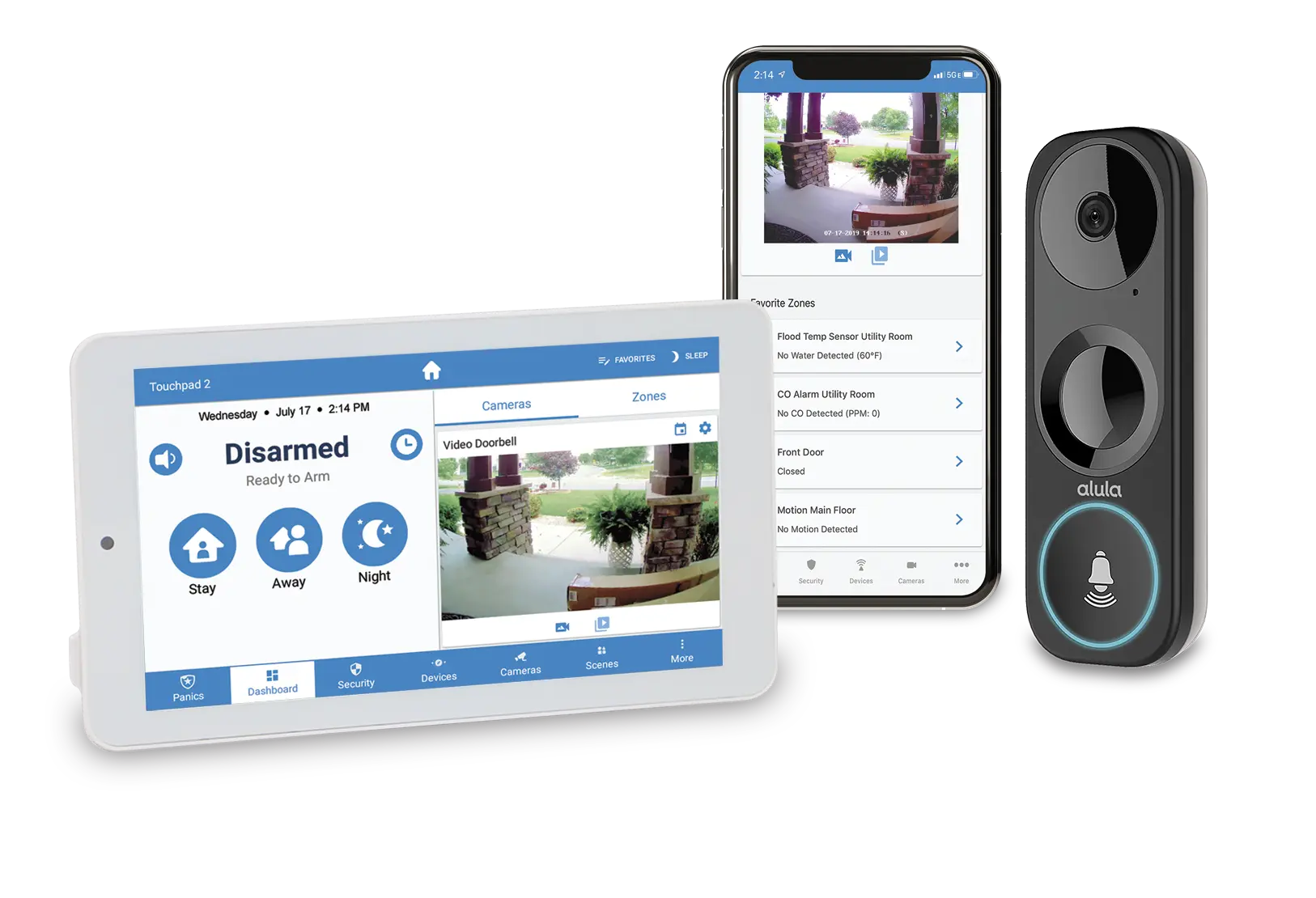
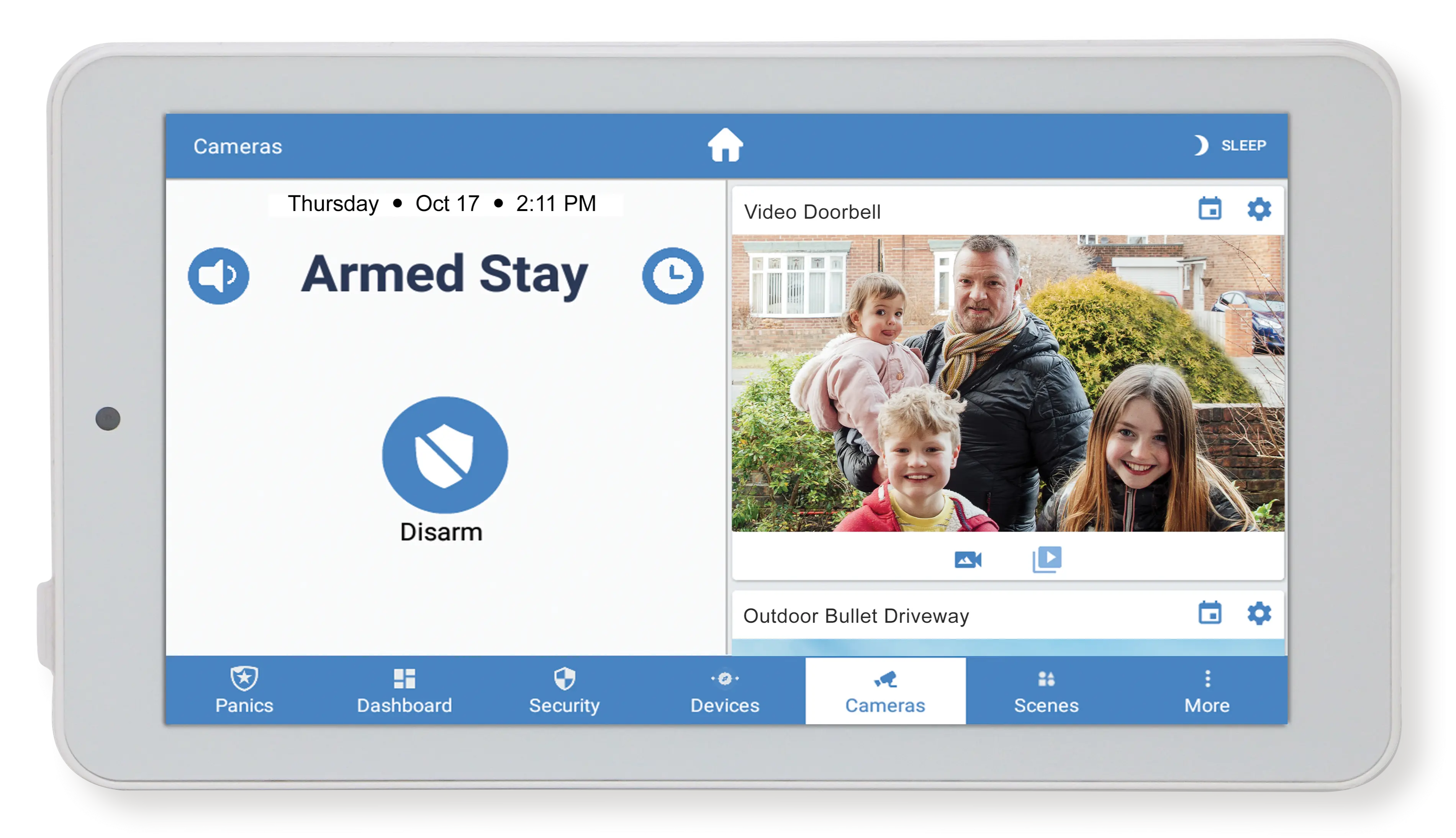
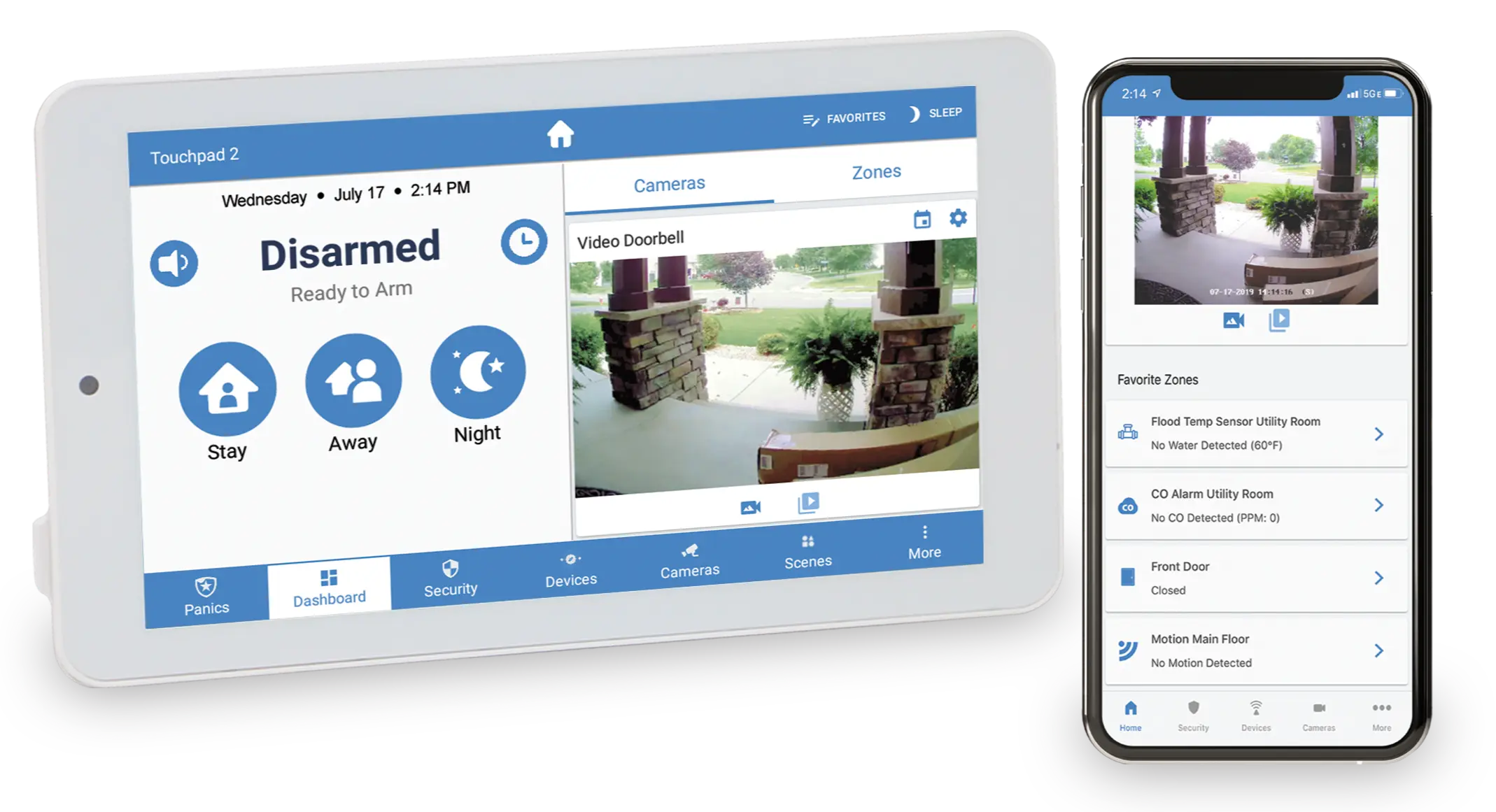
Alula alarm systems offer a modern, integrated approach to home and business security, combining intrusion detection, video surveillance, and smart automation into a single wireless platform. Designed for both new installations and retrofits, Alula systems are compatible with major brands like DSC, Honeywell, Interlogix, and 2Gig through their translator modules. With features like real-time system status, customizable alerts, live video streaming, and control of smart devices (lights, locks, thermostats), Alula delivers professional-grade protection and convenience. The RE656 keypad, a sleek wireless arming station with an E Ink display and capacitive touch interface, provides local control and displays system status even without network connectivity.
To view trouble conditions on the RE656 keypad, press and hold the MENU button until the keypad chirps three times. This opens the extended menu where you can navigate to the trouble conditions display. Icons will indicate issues such as AC power loss, low battery, or sensor faults. To add user codes, use the Alula Security App or the dealer portal. In the app, log in with your credentials, go to the user management section, and add a new contact. Assign a unique username, password, and PIN code, then save and test the new code on the keypad or app interface. The app also allows you to remotely arm/disarm the system, view sensor status, and receive notifications, making user management seamless and secure.
- Touchscreen Keypad
- Interactive User Guide
- Interactive App
- Video Doorbell
- Customize My Cameras
The Palladium Interactive app is a comprehensive mobile platform designed to unify smart security, video surveillance, and home automation into a single intuitive interface. Developed by Palladium Security, the app allows users to remotely arm and disarm their systems, control smart devices like lights and thermostats, and receive real-time alerts for security events. It supports seamless integration with indoor and outdoor cameras, enabling live streaming, pan-tilt-zoom control, and even two-way audio for PTZ models. Whether you're at home or away, the app ensures full visibility and control over your property, making it a powerful tool for modern smart living.
To view trouble conditions in the Palladium Interactive app, open the app and navigate to the System Status or Notifications section. Here, you’ll find alerts for issues such as low battery, sensor faults, or connectivity problems. Each trouble condition is clearly labeled, and tapping on it provides more details and suggested actions. To view cameras, go to the Video tab within the app. Select the desired camera feed to begin live streaming. For PTZ cameras, use the on-screen controls to pan, tilt, or zoom, and activate two-way audio if supported. The app also allows you to review recorded footage, set motion detection zones, and receive push notifications when activity is detected.
-